
MyEtherWallet (MEW) is a non-custodial platform that lets users create, access, and manage crypto wallets directly, staying in full control their private keys and assets. MEW allows users to send and receive ETH, BTC, tokens on multiple networks, interact with decentralized applications (dApps), swap crypto and stake ETH. The new updated dashboard introduces the trading of tokenized stocks without relying on a broker or a centralized platform.
Accessing stocks has traditionally meant opening a brokerage account, going through onboarding and KYC, and managing that investment on a separate platform from your crypto. But that experience is changing.
With MEW Portfolio, you can access tokenized stocks directly from your existing crypto wallet—no new accounts, no switching platforms. Just connect your wallet and get started.
Bring Your Own Wallet
MEW Portfolio is built around a simple idea: you should be able to use the wallet that works for you, from anywhere in the world to manage your crypto and get exposure to US stocks in one portfolio dashboard.
Whether you’re using a browser wallet, mobile wallet, or hardware wallet, you can connect it and instantly access your portfolio. There’s no need to create a separate login or hand over control—your wallet stays in your control the entire time.
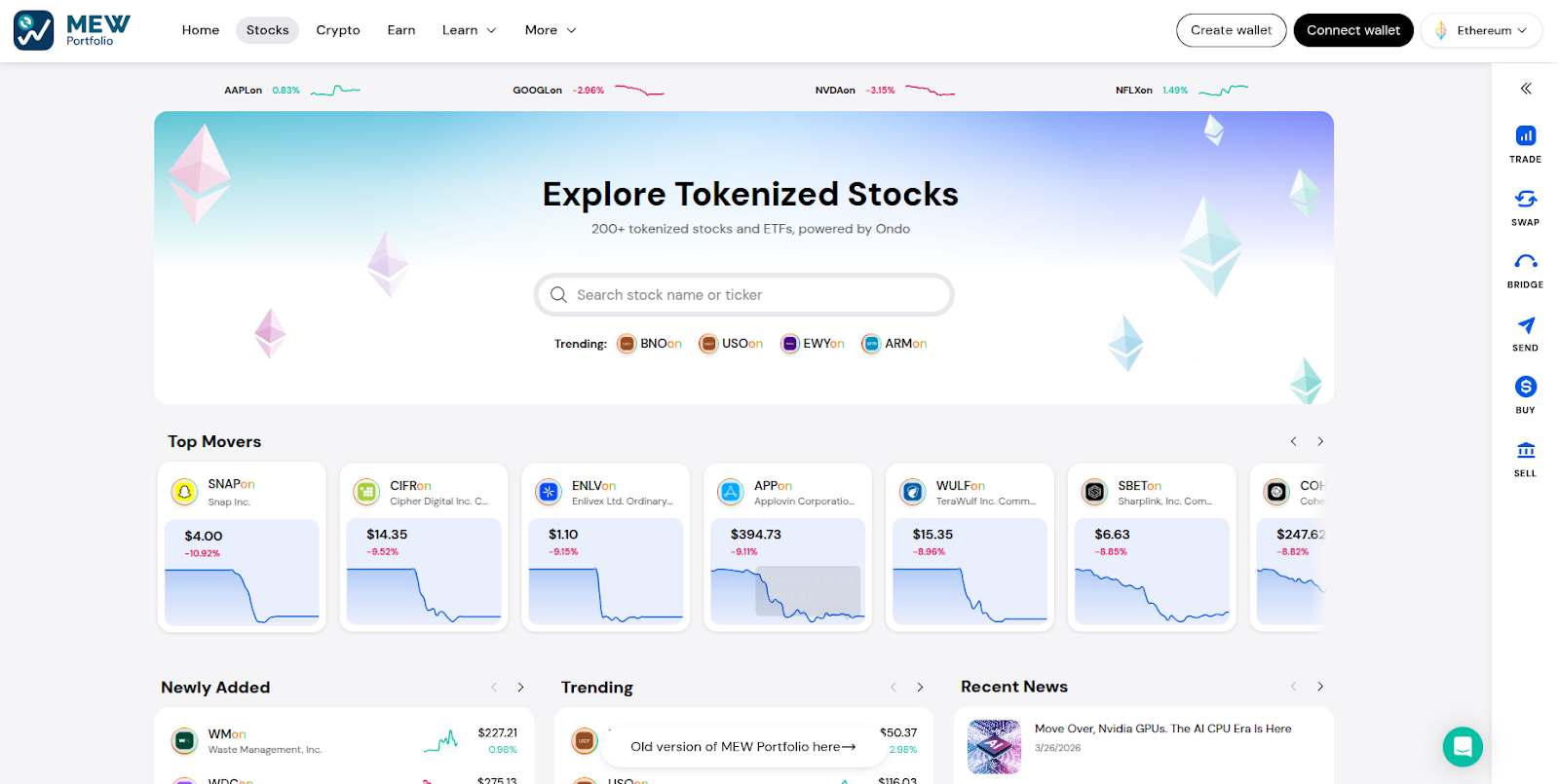
To connect your wallet to MEW Portfolio, first head to the MEW Portfolio website click ‘Connect wallet’ at the top right of the website.
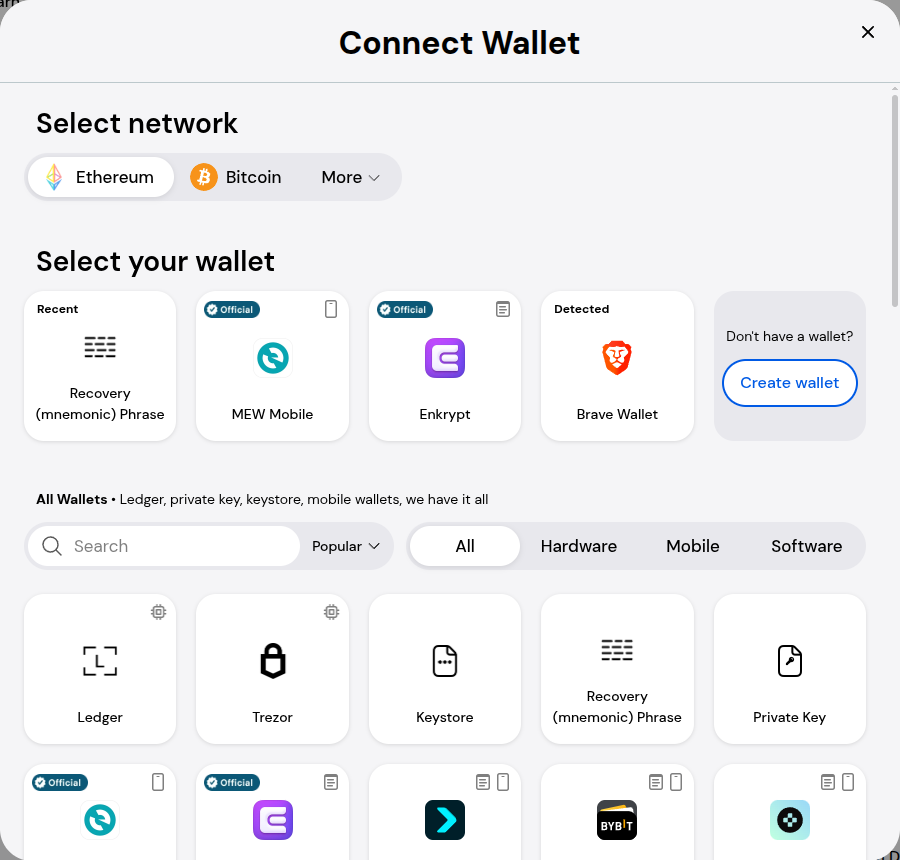
You can choose which wallet you want to connect with including mobile wallets, hardware wallets, browser wallets. Scroll down or use the search bar to find the wallet you’re using.
Get Tokenized Stocks
Tokenized stocks give you exposure to traditional markets, but in a form that works within the crypto ecosystem. Instead of going through a traditional brokerage, you can access these assets directly through MEW Portfolio. MEW makes it easy to browse, search and discover stocks on the stocks page.
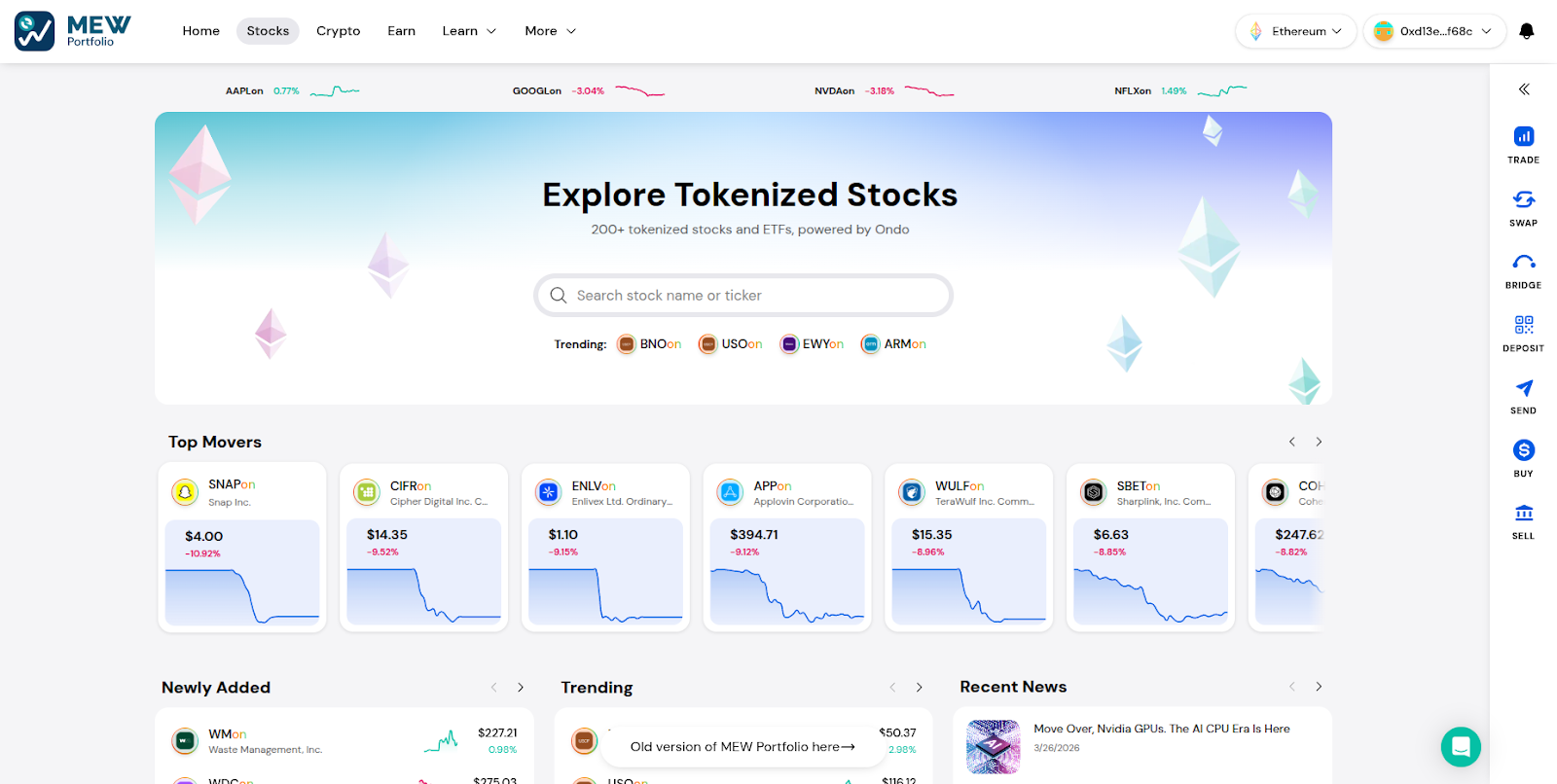
Click the ‘Stocks’ option in the navigation bar at the top of the page. Scroll down to see top movers, newly added stocks, trending stocks, and recent market related news. You can search stocks through the search bar, and add them to a watch list by clicking on the star next to the stock name.
Once you find a stock and select it, there will be a pop up that shows more information about the stock and the trade form on the right side will pop up.
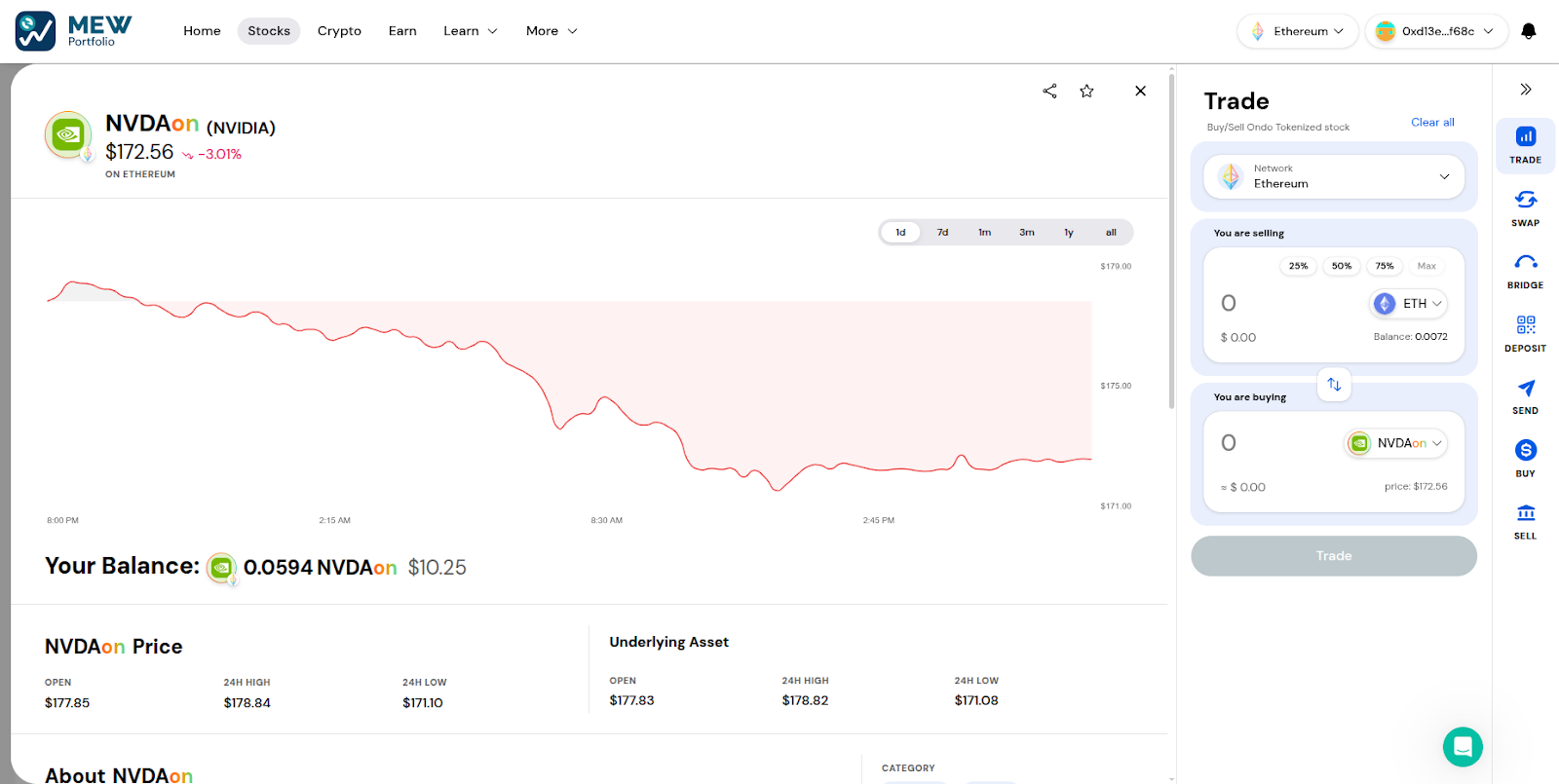
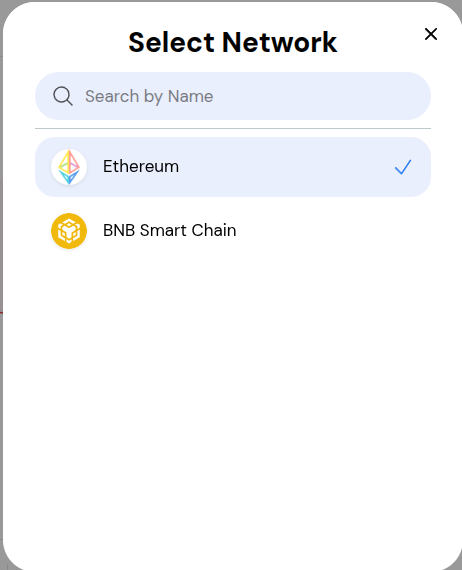
You can select the network dropdown to open the network selection menu.
Select the network you want to trade your tokens on.
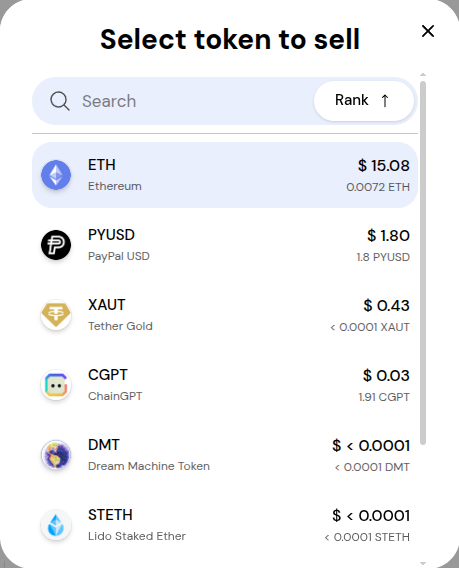
Select the token dropdown menu to select the token you want to use to trade for the tokenized stock.
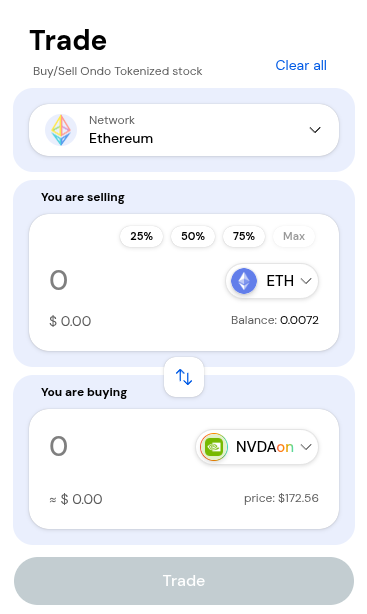
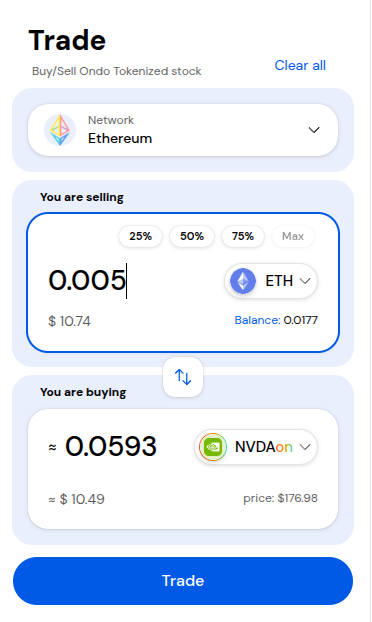
Using the trade form, you can select the network and enter the amount you want to trade then click 'Trade'.
Review the trade then click 'Confirm Trade' to proceed.
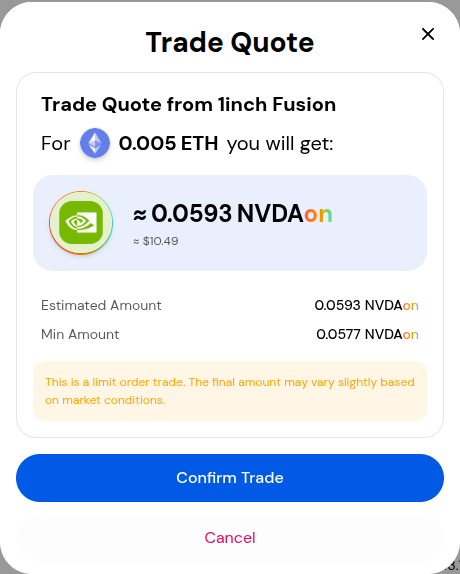
The Trade order will be submitted. Once the trade is complete the pop up will say the order was filled. This may take a few minutes depending on network traffic.
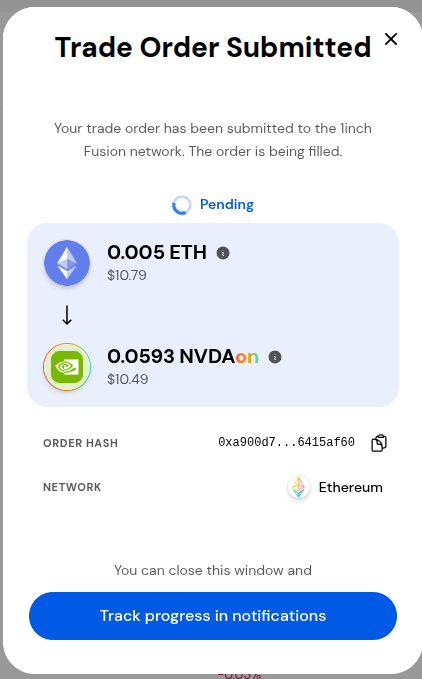
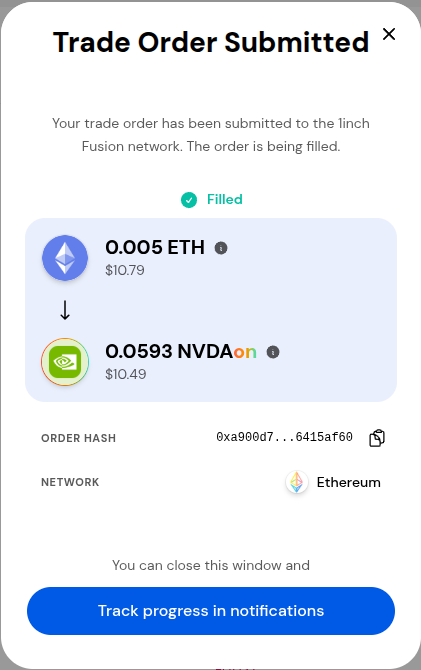
You can also track the progress of your trade by clicking on the notification bell at the top right. Trades will expire after 3 minutes if the trade is not completed and trading may not be available at some points like weekends.
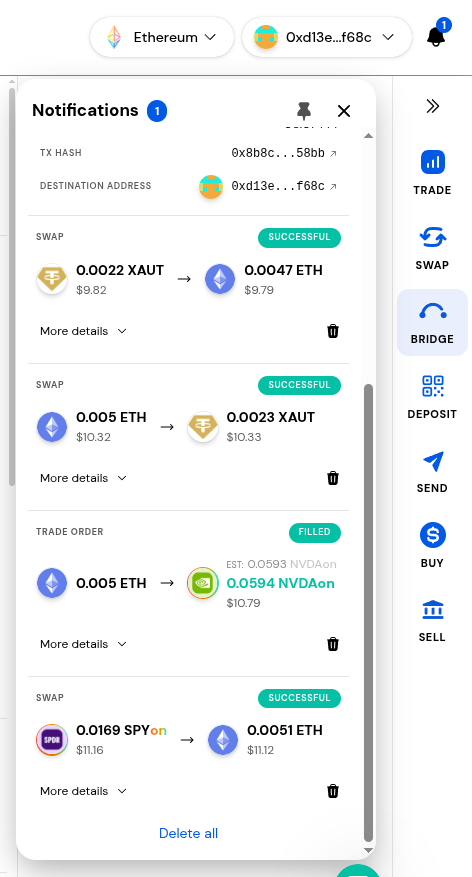
You can also drag around and pin the transaction pop up anywhere on the page. You can also delete transactions in your transaction list by clicking on the trash icon at the bottom right of the transaction.
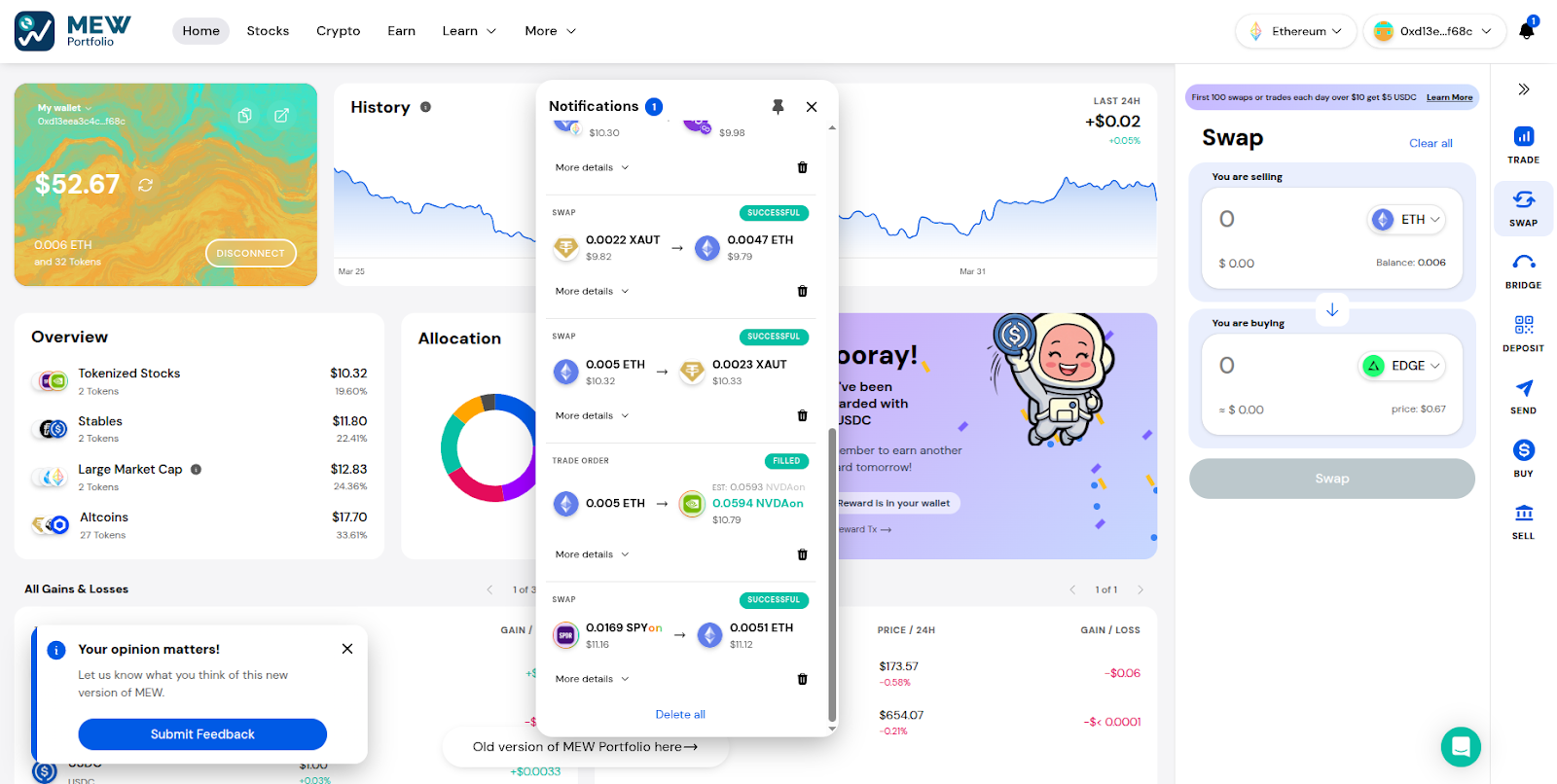
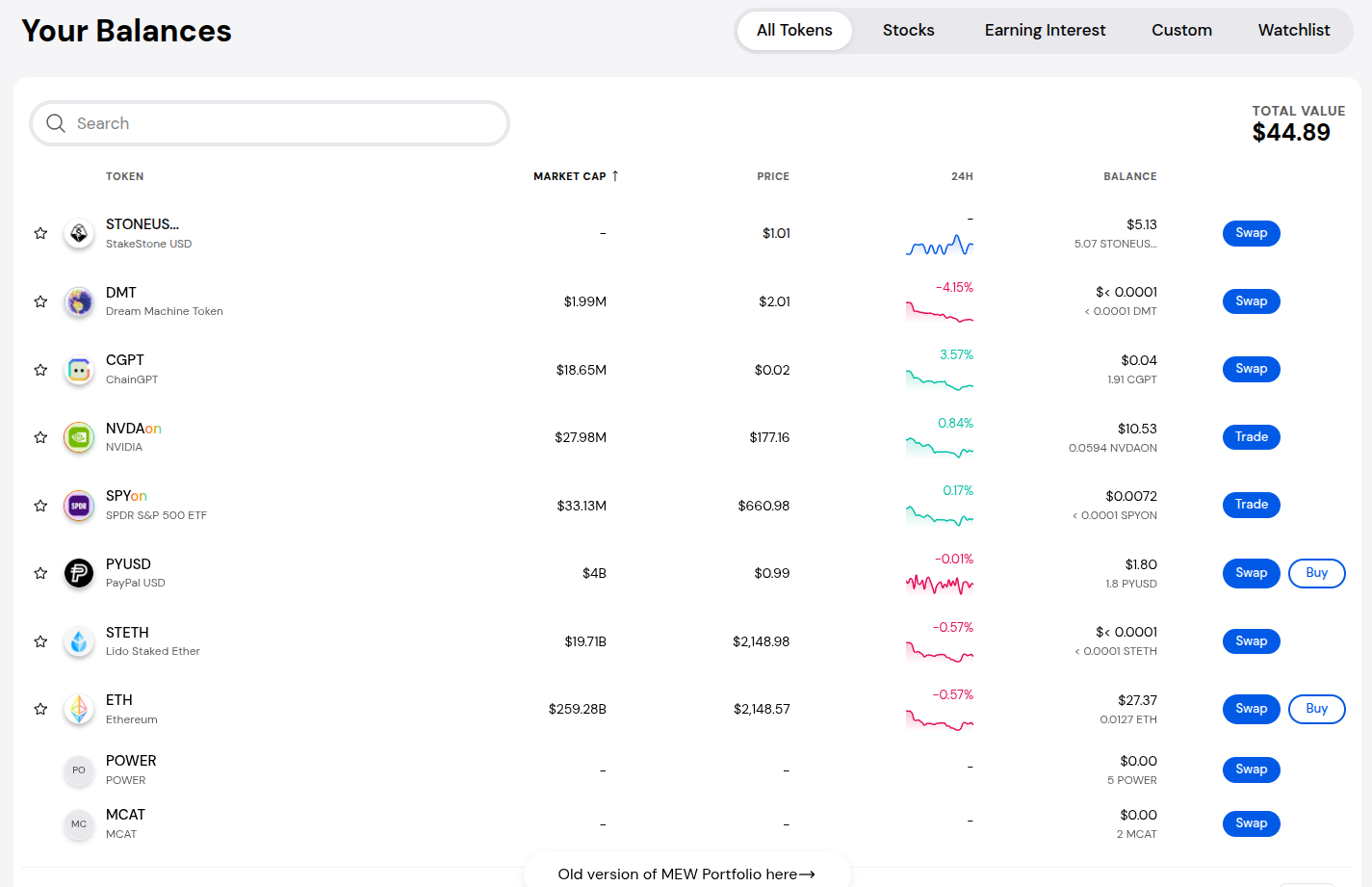
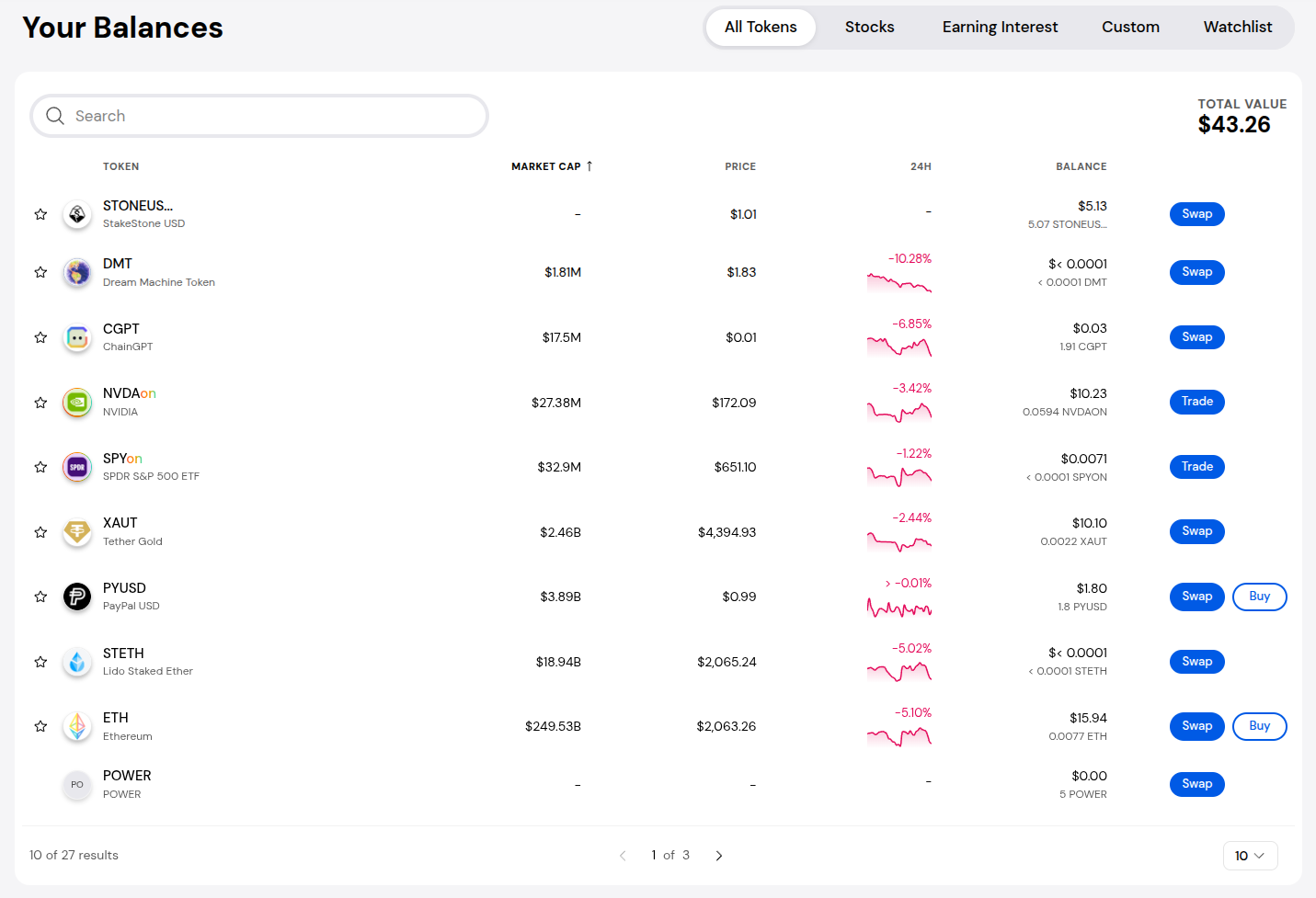
You will be able to see your tokenized stocks in your token balances on the Home page.
Browse, Swap, and Bridge Crypto
Tokenized stocks are MEW Portfolio’s newest exciting addition, but buying, managing, and swapping crypto is as easy as ever. Discover new and trending tokens on the Crypto page.
To view the available crypto, click the 'Crypto' option in the navigation bar located at the top of the page.

Here you can view the New Tokens, Trending and RWA Top Gainers.
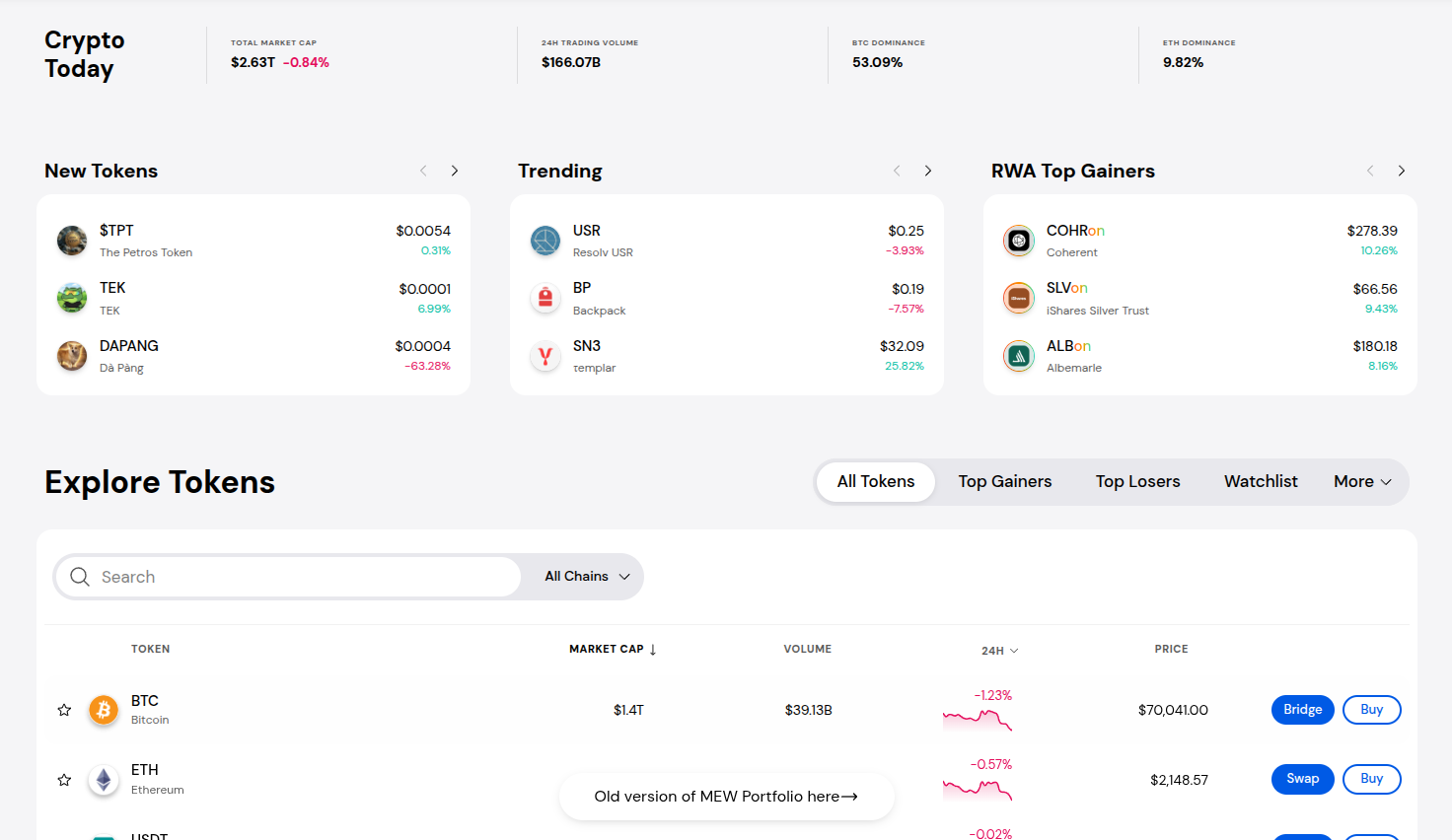
You can scroll down to explore more tokens that you can swap or buy. You can use the tabs at the top right to filter the tokens or use the search bar to find a specific token.
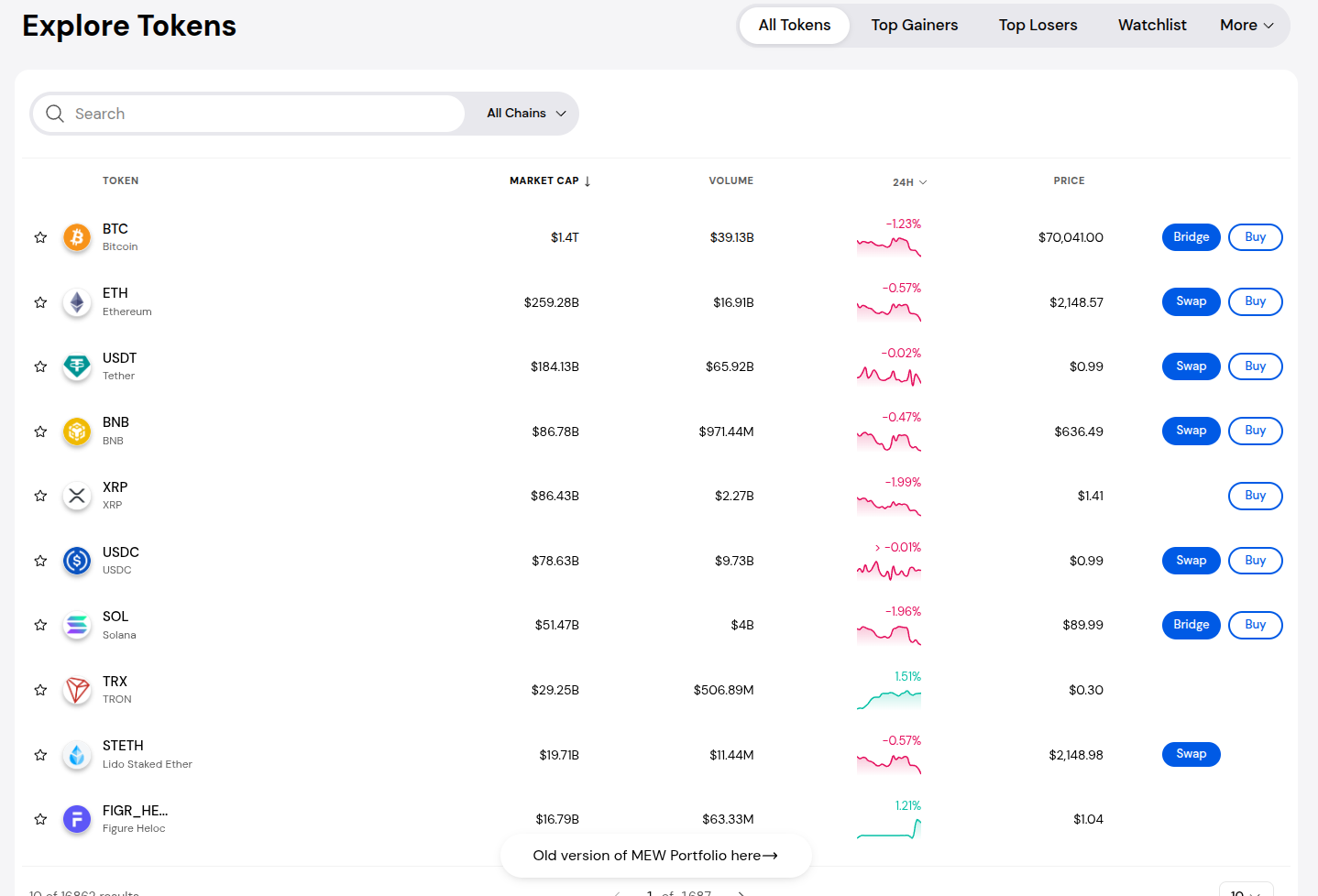
Once you click on a token, you will see more details about the token and the Swap form on the right side. (Note that you can also swap crypto from one network to another, which is called bridging and will pull up the Bridge form for you automatically.)
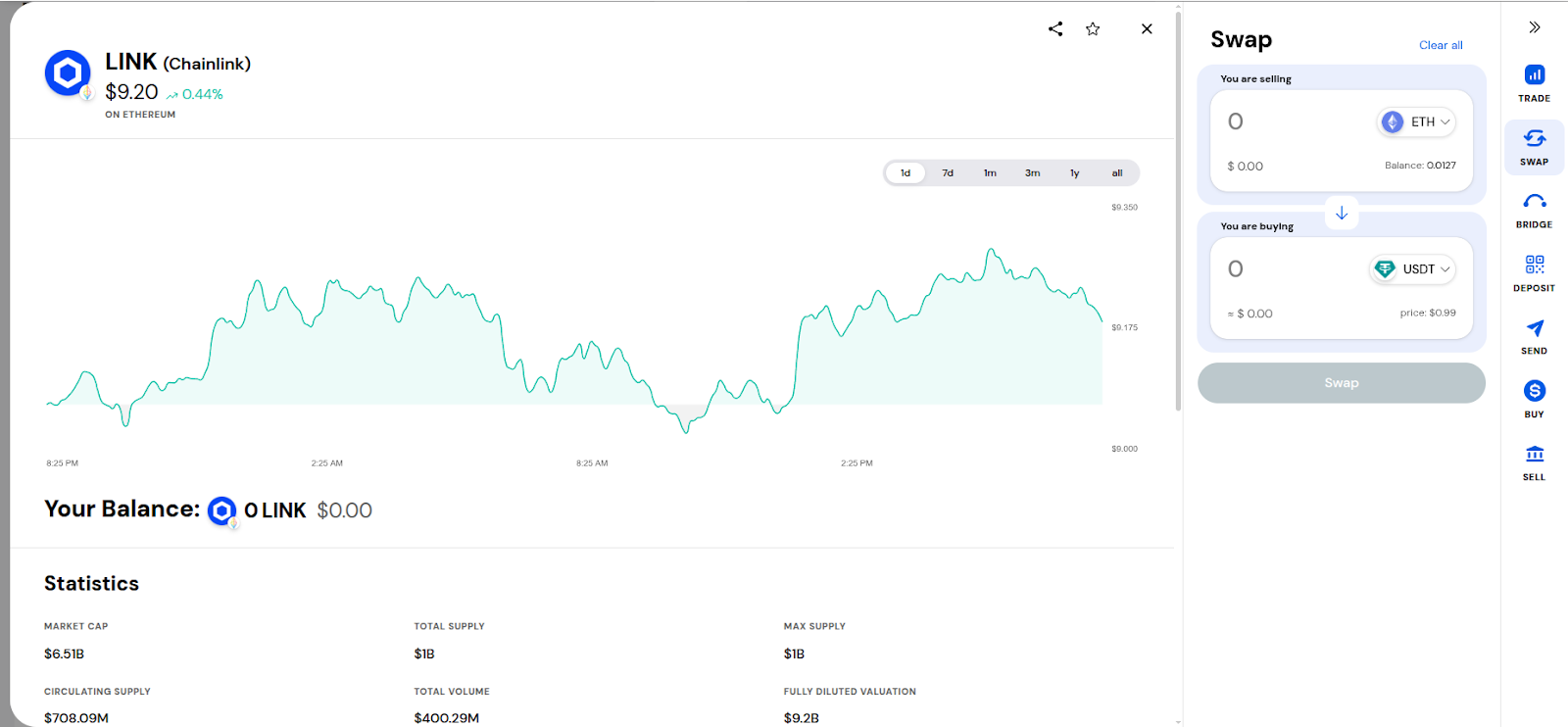
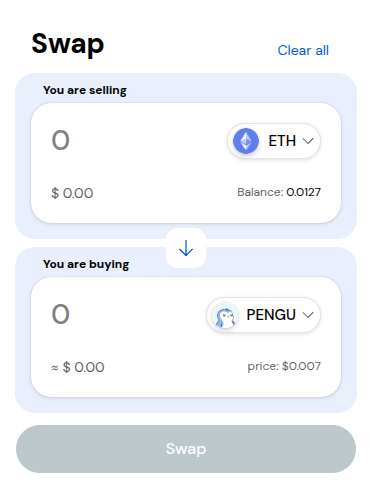
On the swap form, you can click the token dropdowns to open the token selection menu.
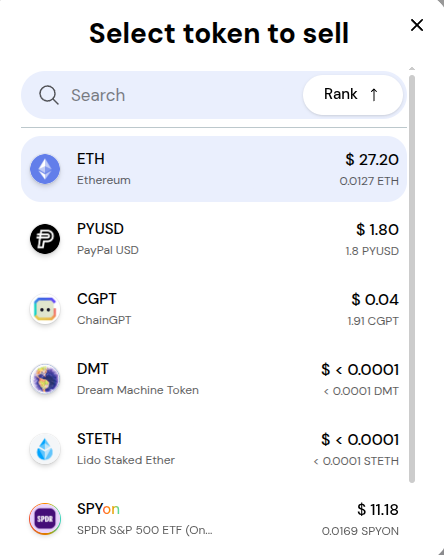
In the token selection menu, you can select the token you want to swap.
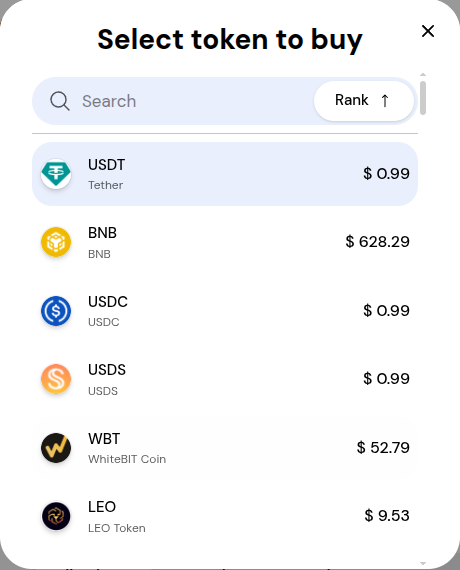
Once you select the tokens you want to trade, enter the amount to swap then click ‘Swap’.
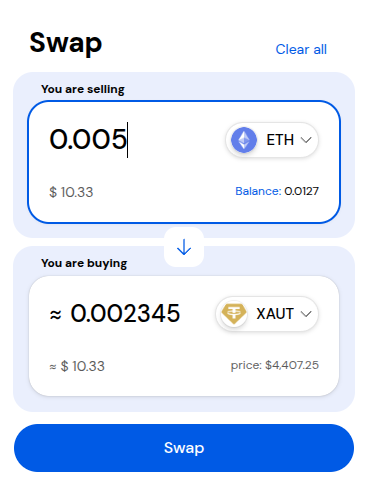
Review the swap then click 'Proceed With Swap' when you are ready.
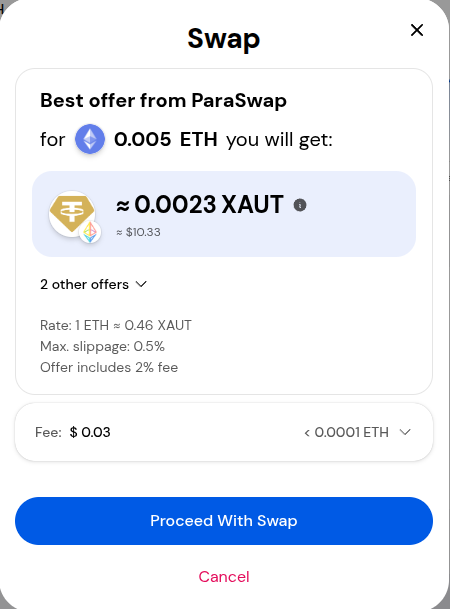
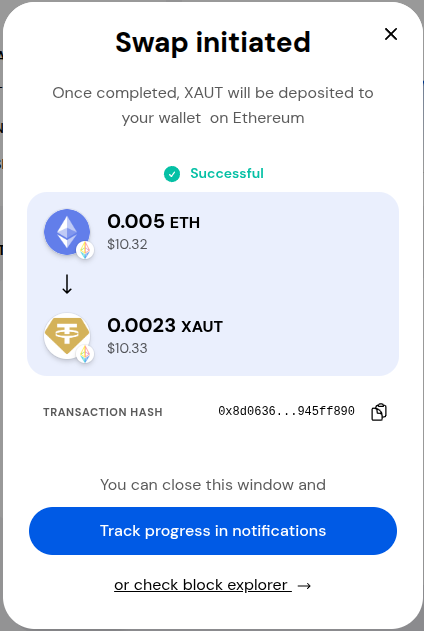
There will be a pop up stating your swap is initiated. Once the transaction is confirmed on the blockchain, the pop up will state your swap was successful.
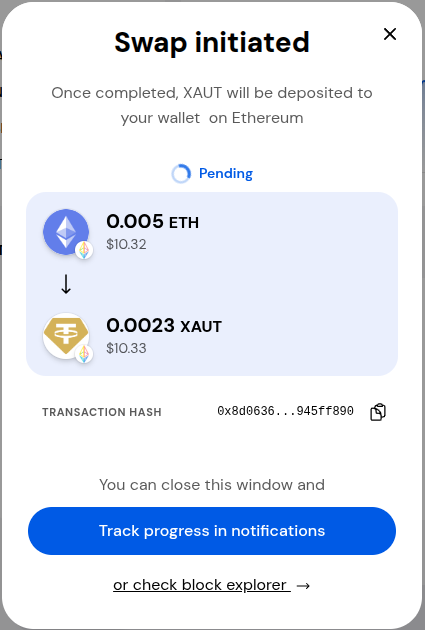
You can also track the progress of your swap by clicking on the notification bell at the top right.
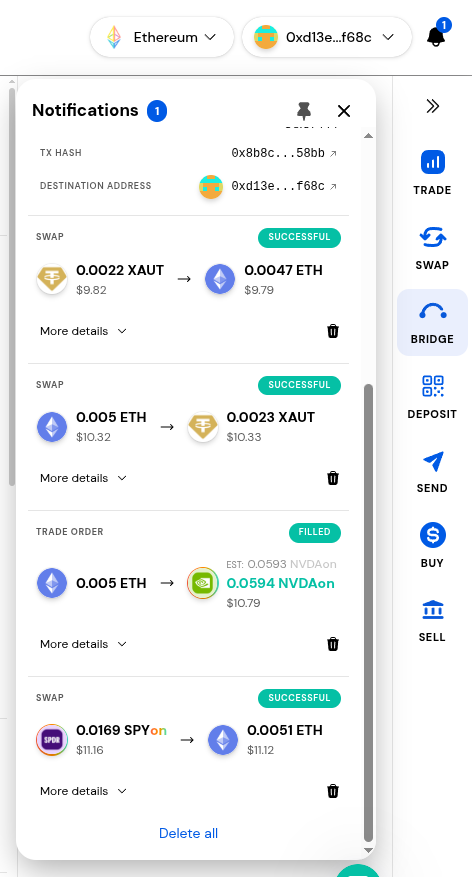
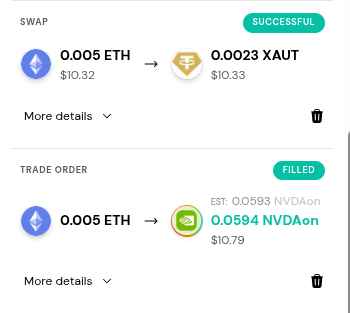
Swapping/bridging and trading are different, as a swap or bridge is between crypto and will show a ‘Successful’ status when completed. A trade is trading for stocks and will show a ‘Filled’ status when it is completed.
You will see your new tokens in your wallet on the Home page under the 'Your Balances' section.
Thank you for checking out our Get Tokenized Stocks, Bring Your Own Wallet! Make sure to follow us on X(Twitter) and let us know your thoughts. Sign up for our newsletter to stay up to date with MEW releases, and check out our weekly podcast Crypto Currents for the latest news in crypto.