Everyone knows that you can send cryptocurrency between wallets, but did you know that you can add text data to transactions that live on the blockchain forever? Whether it's for personal privacy, professional accountability, or just the thrill of being at the cutting edge of technology, follow the steps below for help sending messages onchain!
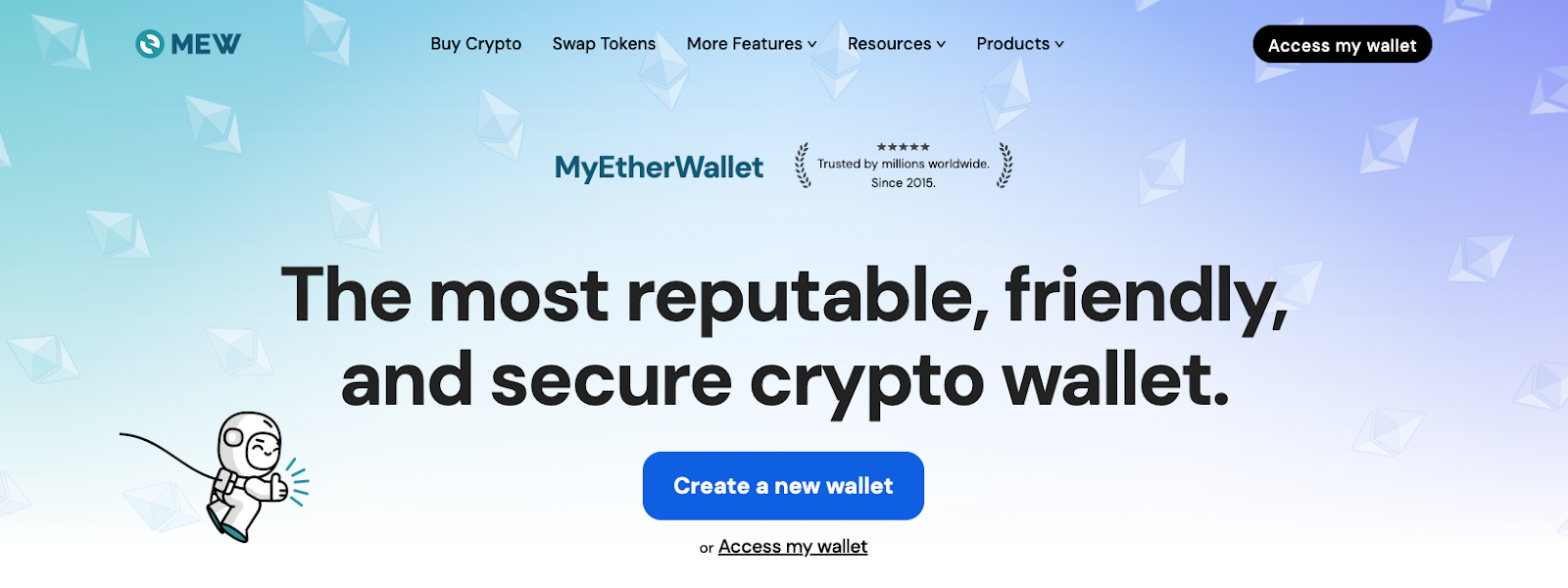
First things first, head to https://www.myetherwallet.com.
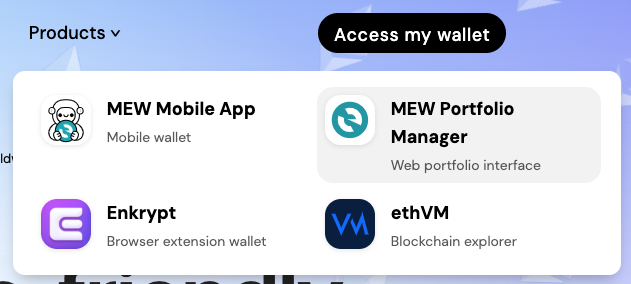
On the top right corner of the page, hover your mouse over “Access my wallet” and click on “MEW Portfolio Manager”.
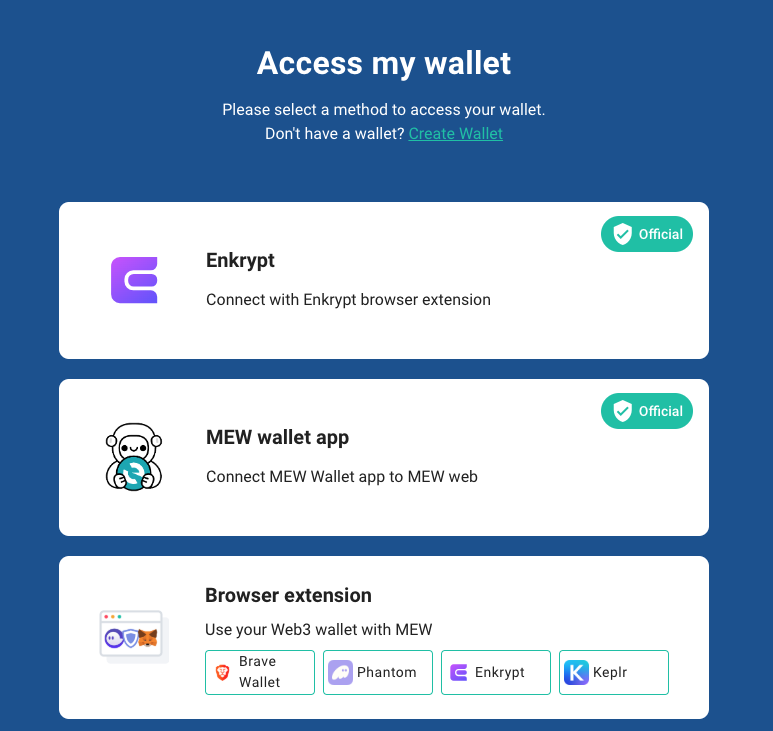
Select which wallet you’re connecting with.
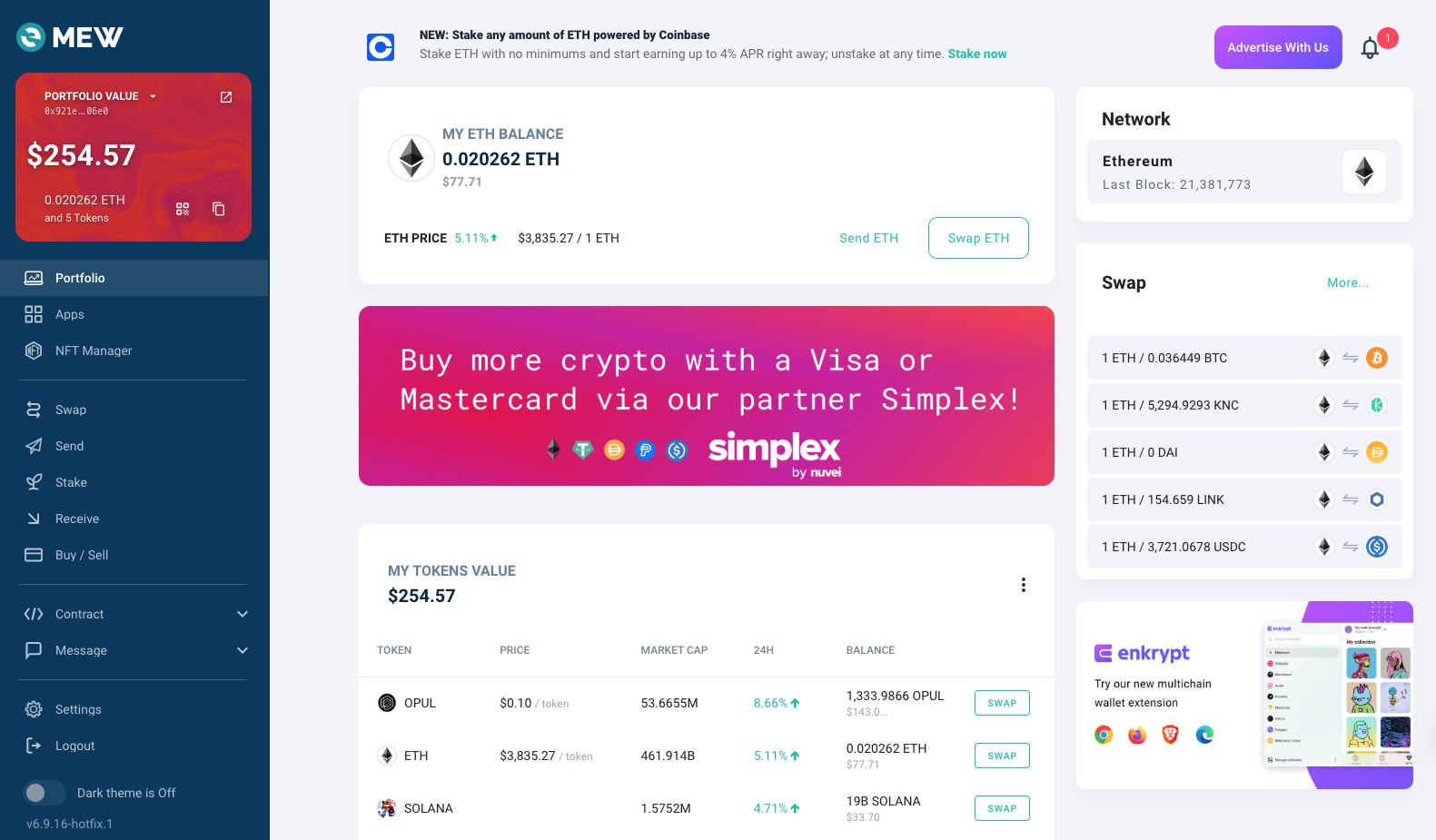
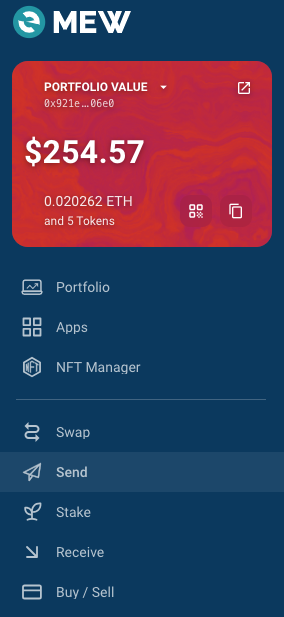
You’ll land on your wallet portfolio page. On the left side of the screen, click on “Send”.
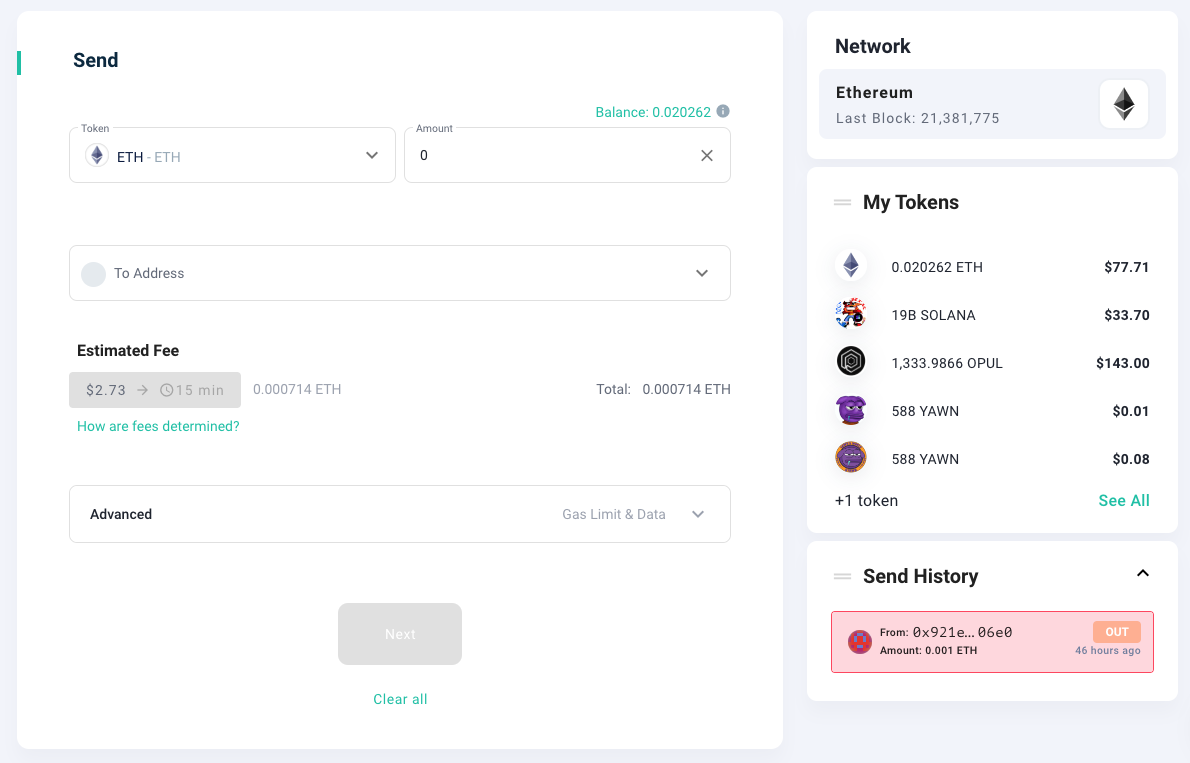
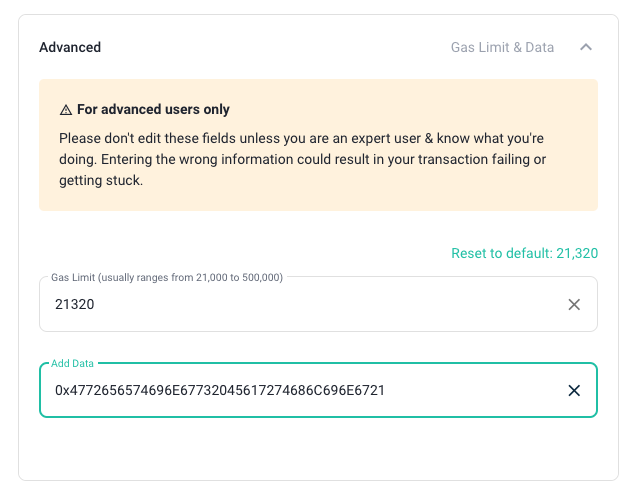
From here, enter in the amount of ETH you’d like to send with your message. You can also send 0 ETH if all you want to do is put the message onchain, although you will still need to pay the network fee for the transaction. More importantly, open up the “Advanced” tab underneath your estimated fee.
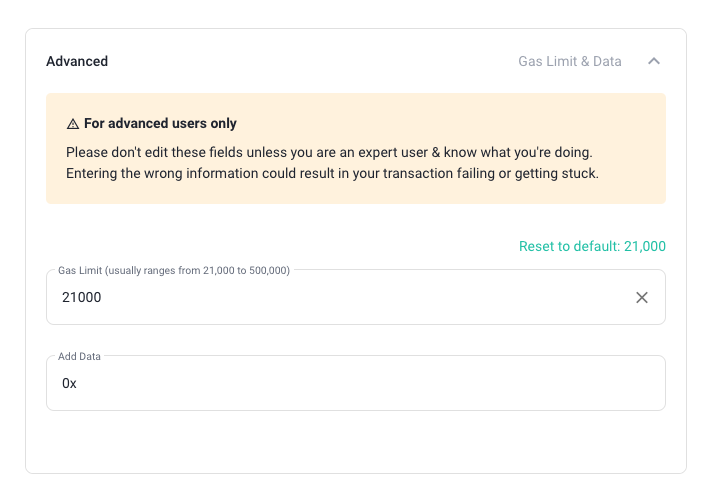
This is where you’ll be able to attach a message to your transaction. But before we type out our message here, it needs to be converted to hexadecimal.
There are many tools online for converting text to hexadecimal, but for this example we’re using Grok AI via X (fka Twitter).
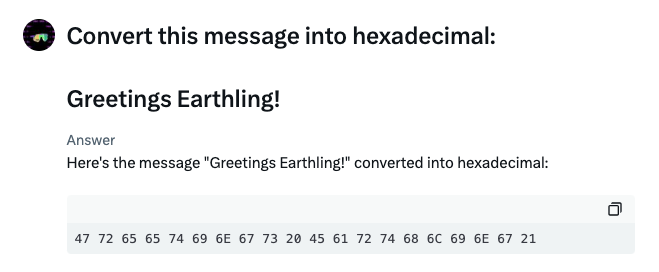
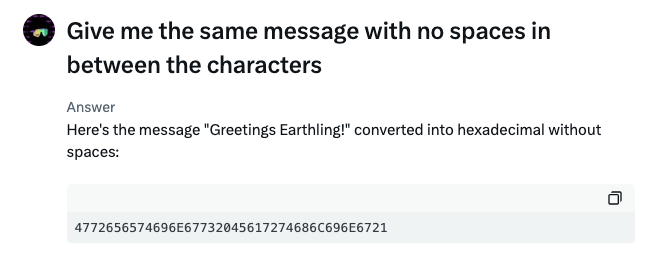
If you also use Grok, you’ll need to ask it to remove the spaces in between the numbers. Once you have your string of hexadecimal text, copy it.
Head back to your MEW Portfolio. Paste the hexadecimal string of text in the “Add Data” box from earlier. Make sure to include the “0x” that is already there. Don’t delete it or your message won’t convert back to regular text afterwards! Click on “Next” when you’re ready.
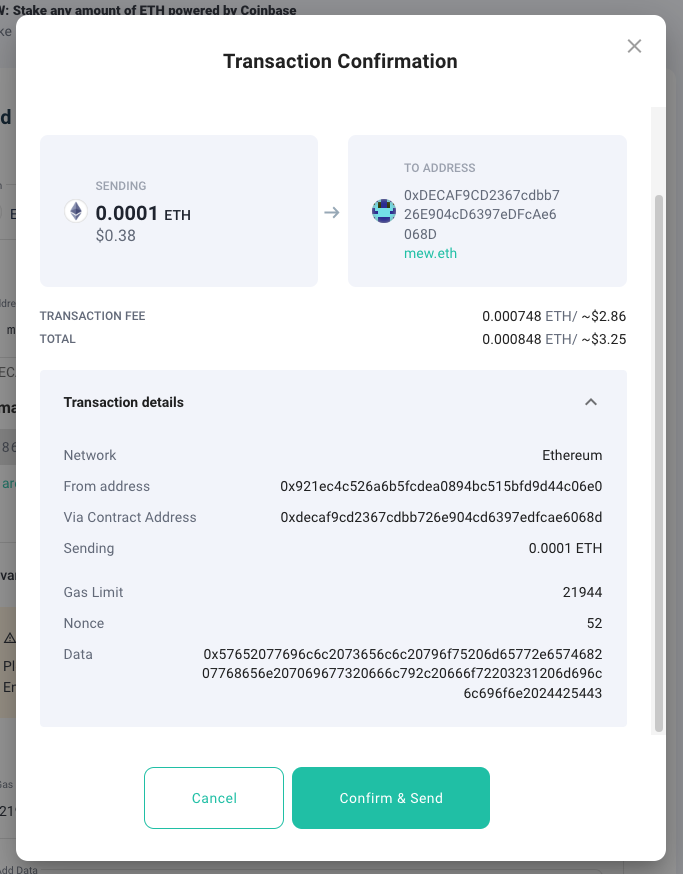
The following will pop up. You’ll see the data you pasted. Click on “Confirm & Send”.
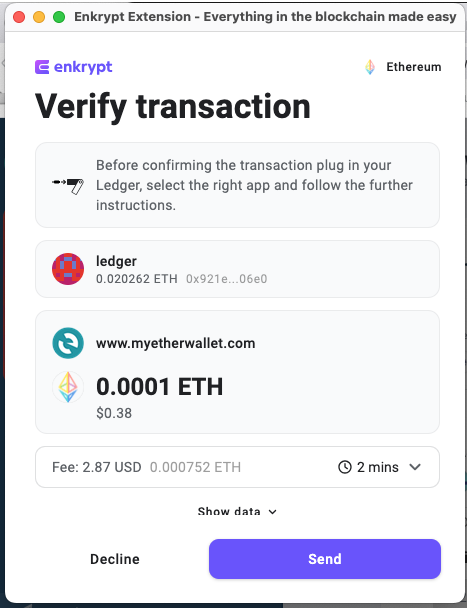
Enkrypt will pop up. Click on “Send”. If you’re using a different wallet, confirm the transaction when it pops up.
Congrats, you just sent a message onchain! In order to see it for yourself, click on “View on ethVM”.
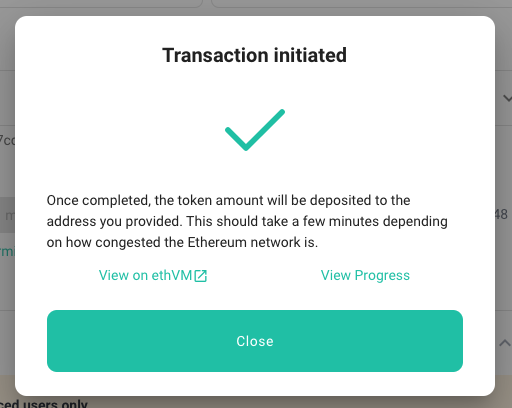
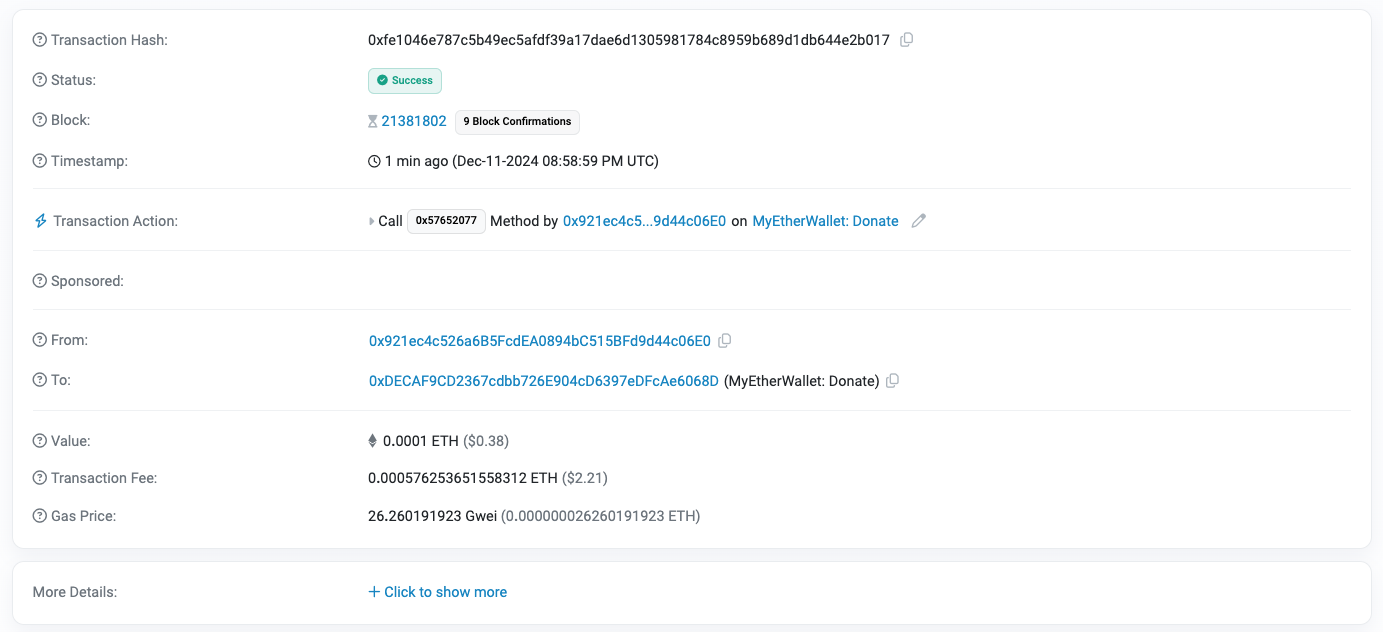
Copy the Tx Hash by clicking on the lil copy button to the right of it.

Head to Etherscan.com. Once there, paste the Tx Hash into the search bar as shown below.

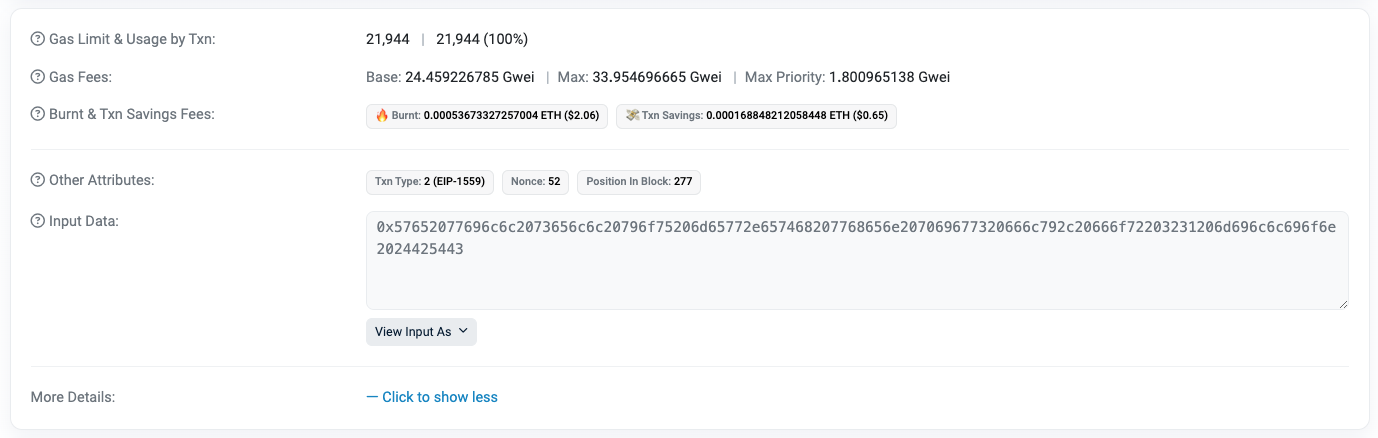
Your transaction will appear. Open up the “More Details” tab on the bottom.
You’ll see the string of hexadecimal text that’s attached to the transaction. Click on “View Input As” and select “UTF-8”.
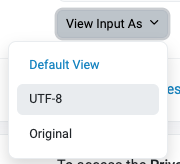
Your message will be converted to readable text!
Looks like…. “Greetings Earthling!”
… Interesting…

Thank you for checking out our guide on Sending a Message Onchain! Make sure to follow us on X(Twitter) and let us know your thoughts. Sign up for our newsletter to stay up to date with MEW releases, and check out our weekly podcast Crypto Currents for the latest news in crypto. Don't forget to download Enkrypt for a seamless web3 multichain wallet experience. Also, if you enjoy using mobile cryptocurrency wallets, give our MEW Mobile app a try, it's available on both iOS and Android platforms!